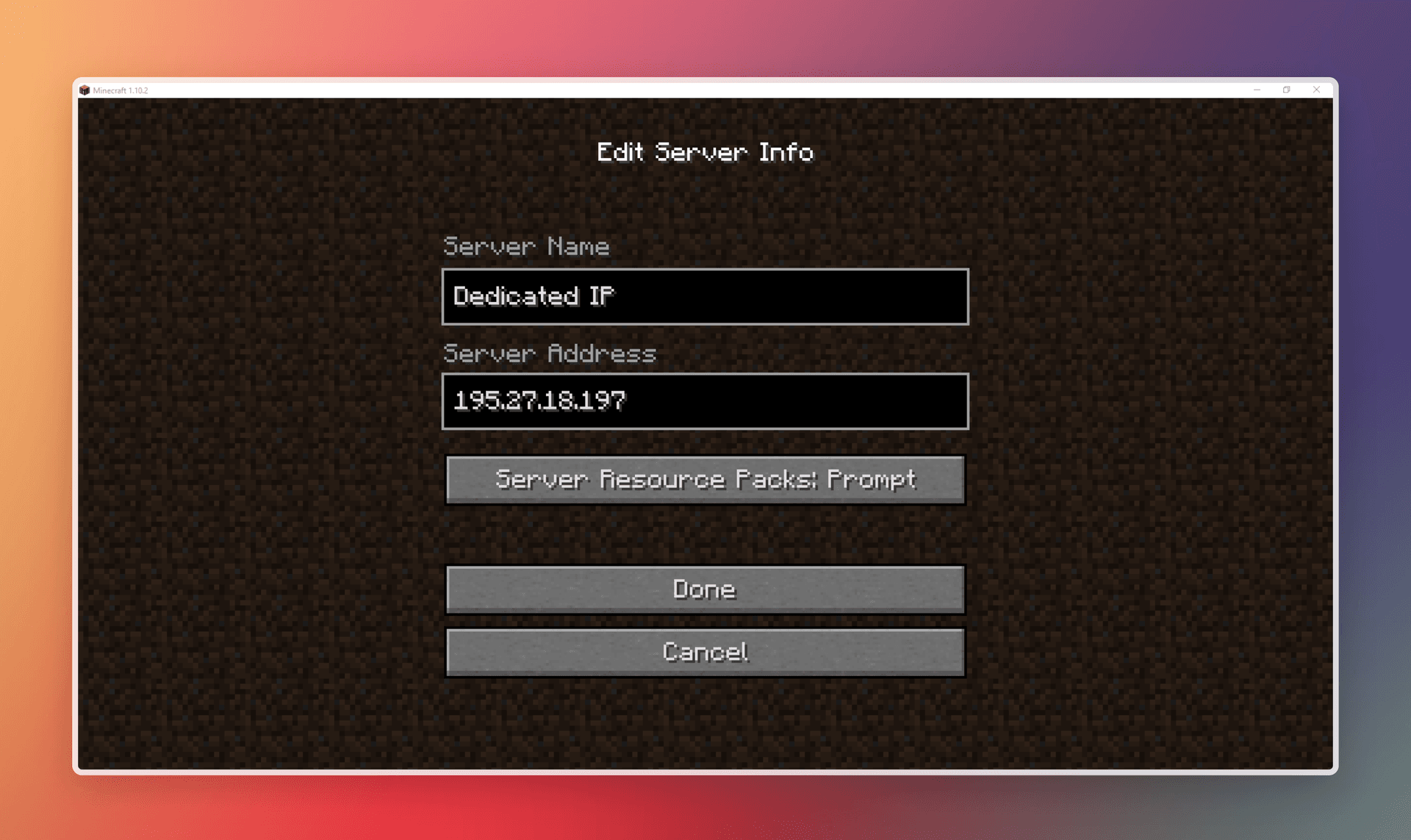
Have you ever wanted to run your own Minecraft server without the monthly hosting fees? Or needed a way to play with friends on a reliable platform that doesn't slow down when your computer goes to sleep? In this post, I'll share how I leveraged Oracle Cloud's Always Free tier to create a robust Minecraft server solution that costs absolutely nothing.
The Problem
Running a Minecraft server traditionally presents several challenges:
- Commercial hosting services can be expensive ($5-20/month)
- Running the server on your own computer ties up resources and requires keeping your PC on
- Home connections often have dynamic IPs and limited upload bandwidth
- Power outages or internet disruptions can cause progress loss
I wanted a solution that would be completely free, reliable, and professionally managed without sacrificing performance.
The Solution: Oracle Cloud VM + Automation
Oracle Cloud offers genuinely free virtual machines that are perfect for game servers. I created a solution using:
- Oracle Cloud's Always Free ARM-based VM (4 OCPUs, 24GB RAM)
- Official vanilla Minecraft server software
- SSH remote access for management
- Tmux for persistent sessions
- Cron jobs for automated backups to Amazon S3
- Proper firewall configuration
This setup provides the reliability of commercial hosting without any ongoing costs.
Creating the Oracle Cloud Account and VM
The first step was setting up the cloud infrastructure:
-
Created an Oracle Cloud account at cloud.oracle.com
-
Verified my account using a credit card (required for verification, but not charged)
-
Created a new VM instance with the following specifications:
- OS: Oracle Linux 7.9
- Shape: Ampere (ARM-based, Always Free eligible)
- Resources: 4 OCPUs and 24GB RAM (maximum free allocation)
- Boot volume: 100GB
-
Generated and downloaded an SSH key pair for secure access
-
Noted the public IP address assigned to the VM
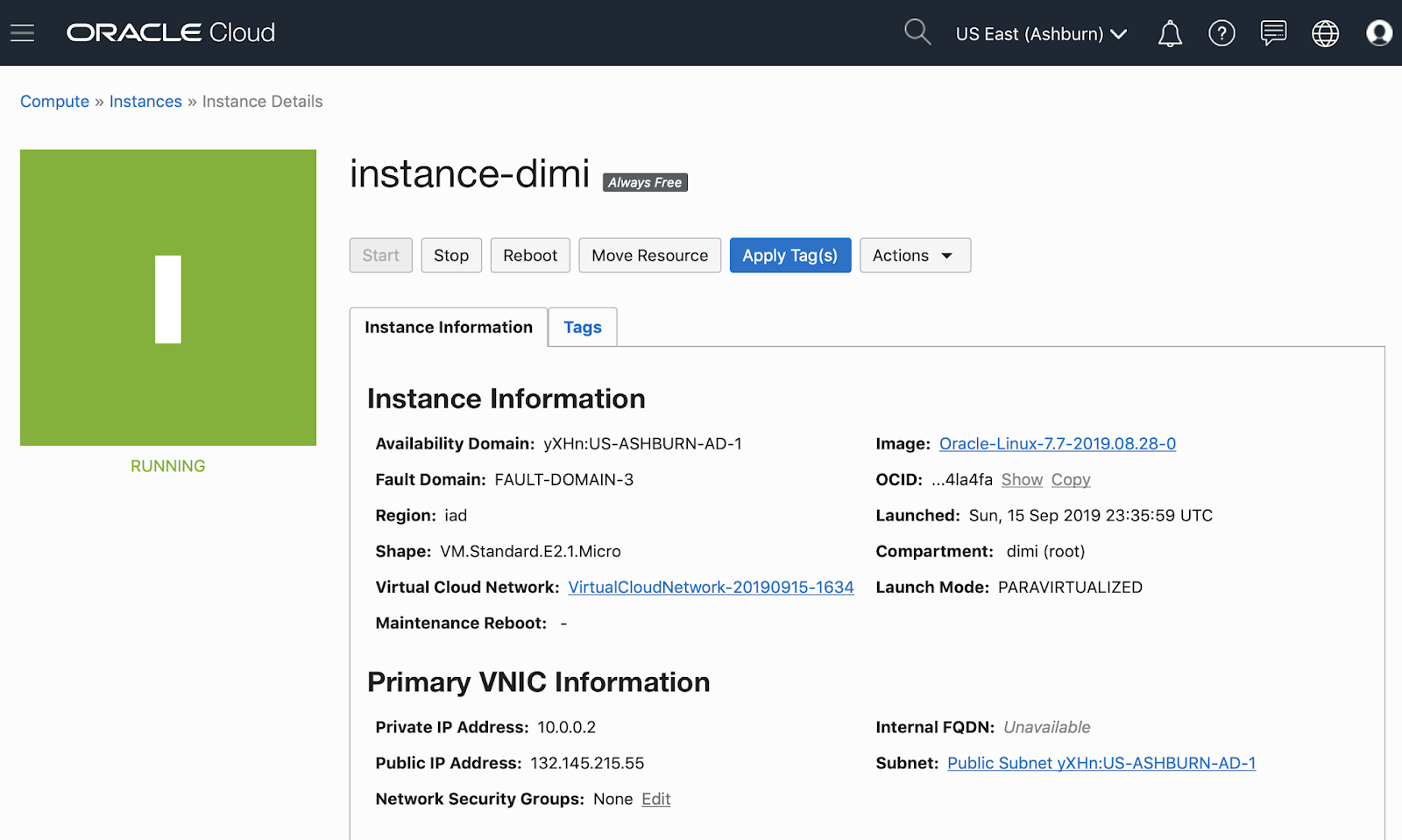 Obviously not my own instance, but you get the idea
Accessing the Server Remotely
With the VM running, I needed to establish secure remote access:
-
Connected to the server via SSH from my terminal:
ssh opc@<server-ip-address> -i /path/to/private_key -
Updated the system packages:
sudo yum update -y -
Installed essential utilities:
sudo yum install wget tmux nano -y
Setting Up the Minecraft Server
With remote access established, I could now install and configure the Minecraft server software:
Installing Java
Minecraft requires Java to run, so I installed the latest compatible version:
sudo yum install jdk-17 -yVerified the installation:
java --versionDownloading and Configuring Minecraft
-
Created a dedicated directory for the server:
mkdir minecraft cd minecraft -
Downloaded the official vanilla Minecraft server:
wget https://www.minecraft.net/en-us/download/server mv server.jar minecraft_server.jar -
Started the server for initial setup:
java -Xmx8G -Xms8G -jar minecraft_server.jar noguiThis allocates 8GB of RAM to the Minecraft server, which is plenty for a small to medium-sized server with multiple players.
-
Accepted the EULA:
nano eula.txt # Changed eula=false to eula=true -
Configured server properties:
nano server.propertiesKey settings I modified:
- server-port=25565 (default Minecraft port)
- difficulty=normal
- max-players=10
- view-distance=10
- spawn-protection=0
- enable-command-block=true
Setting Up Port Forwarding and Firewall Rules
To make the server accessible from the internet, I configured the necessary network settings:
- In the Oracle Cloud Console:
- Navigated to the VM's VCN (Virtual Cloud Network)
- Accessed Security Lists for the public subnet
- Created ingress rules for port 25565 (TCP and UDP)
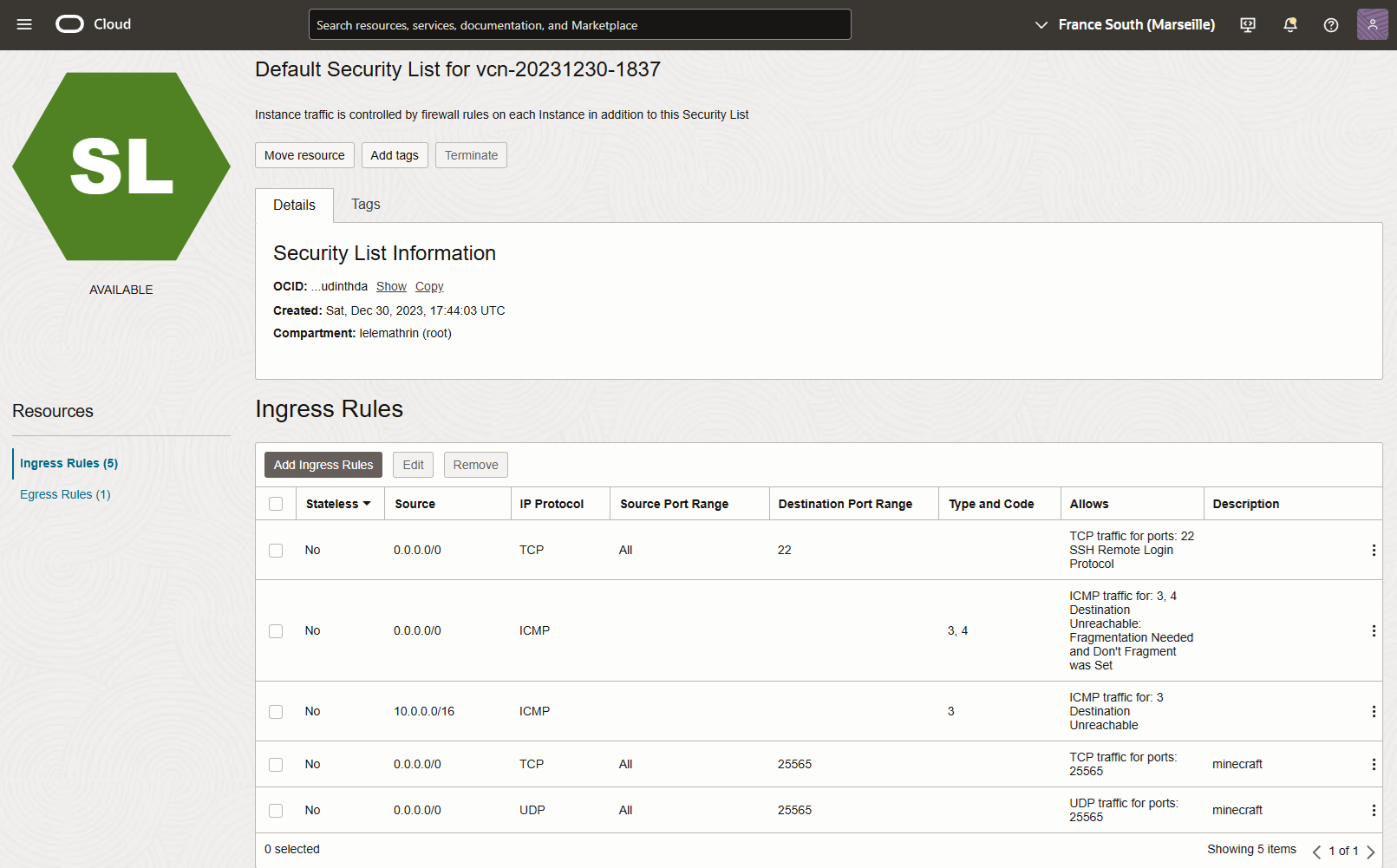
Unlike some setups, I didn't need to configure the Linux firewall manually as the Oracle Cloud interface handled this entirely.
Implementing Server Persistence with Tmux
To keep the server running even after disconnecting from SSH, I set up Tmux:
-
Started a new Tmux session:
tmux new -s minecraft -
Launched the Minecraft server within the Tmux session:
java -Xmx8G -Xms8G -jar minecraft_server.jar nogui -
Detached from the session without stopping the server:
- Pressed Ctrl+B and then D
To reconnect to the session later:
tmux attach -t minecraftThis setup ensures the server continues running even when I'm not actively connected through SSH.
Automating Backups to Amazon S3
To prevent data loss, I implemented an automated backup solution:
-
Installed and configured the AWS CLI:
curl "https://awscli.amazonaws.com/awscli-exe-linux-aarch64.zip" -o "awscliv2.zip" unzip awscliv2.zip sudo ./aws/install -
Configured AWS credentials:
aws configure # Entered access key, secret key, region, and output format -
Created a backup script:
nano backup.shContents of backup.sh:
#!/bin/bash # Load the user's profile to ensure all environment variables are set source /home/opc/.bashrc # Set the PATH to include locations of all necessary binaries PATH=/usr/bin:/usr/local/bin:$PATH # Define server directory, backup directory, S3 bucket name, and log file SERVER_DIR="/home/opc/Server" BACKUP_DIR="/home/opc/backups" S3_BUCKET="s3-mc-backup" TMUX_SESSION="minecraft" LOG_FILE="/home/opc/minecraft_backup.log" # Start logging echo "Starting Minecraft backup process at $(date)" >> $LOG_FILE # Navigate to the server directory cd $SERVER_DIR # Send stop command to the Minecraft server running in tmux tmux send-keys -t $TMUX_SESSION "/stop" C-m echo "Sent stop command to Minecraft server" >> $LOG_FILE # Wait for the server to stop sleep 60 echo "Server stopped, proceeding with backup" >> $LOG_FILE # Define backup file name BACKUP_FILE="minecraft_backup_$(date +"%Y%m%d").tar.gz" # Create a new backup with today's date tar -czf $BACKUP_DIR/$BACKUP_FILE $SERVER_DIR echo "Backup file created: $BACKUP_FILE" >> $LOG_FILE # Upload the backup to S3 aws s3 cp $BACKUP_DIR/$BACKUP_FILE s3://$S3_BUCKET/$BACKUP_FILE >> $LOG_FILE 2>&1 echo "Backup file uploaded to S3" >> $LOG_FILE # Delete local backups older than 5 days find $BACKUP_DIR -name 'minecraft_backup_*.tar.gz' -mtime +5 -exec rm {} \; echo "Deleted local backups older than 5 days" >> $LOG_FILE # Delete backups older than 7 days from S3 aws s3 ls s3://$S3_BUCKET/ | grep 'minecraft_backup_' | while read -r line; do CREATE_DATE=`echo $line|awk {'print $1" "$2'}` FILENAME=`echo $line|awk {'print $4'}` OLD_DATE=$(date +"%Y-%m-%d" --date="7 days ago") if [[ "$CREATE_DATE" < "$OLD_DATE" ]]; then aws s3 rm s3://$S3_BUCKET/$FILENAME echo "Deleted $FILENAME from S3" >> $LOG_FILE fi done # Start the server within tmux session # Check if the tmux session exists, create it if not if ! tmux has-session -t $TMUX_SESSION 2>/dev/null; then tmux new-session -d -s $TMUX_SESSION echo "New tmux session created" >> $LOG_FILE fi # Send the command to start the server in tmux tmux send-keys -t $TMUX_SESSION "cd $SERVER_DIR" C-m tmux send-keys -t $TMUX_SESSION "./run.sh" C-m echo "Minecraft server started" >> $LOG_FILE echo "Minecraft backup process completed at $(date)" >> $LOG_FILE -
Made the script executable:
chmod +x backup.sh -
Set up a cron job to run the backup every night at 5 AM:
crontab -e
# Added the line:
0 5 * * * /home/opc/backup.sh
This ensures that backups are created automatically and stored safely in cloud storage, protecting against data loss.
Results
After setting everything up, I had a fully functional Minecraft server that:
- Runs 24/7 with no monthly costs (completely free)
- Offers excellent performance with 4 dedicated OCPUs and 8GB RAM allocation
- Maintains uptime even during client disconnections
- Automatically backs up to secure cloud storage
- Provides a low-latency experience for multiple concurrent players
- Can be managed remotely from any device with SSH capability
The Oracle Cloud VM has proven remarkably stable, and using Tmux ensures that server sessions persist even if my SSH connection drops. The automated backups provide peace of mind, knowing that player progress is safe even in the event of a catastrophic failure.
For anyone looking to host their own Minecraft server without ongoing costs, Oracle Cloud's Always Free tier offers an exceptional solution that rivals paid hosting services in terms of performance and reliability.
This project combines cloud infrastructure, Linux system administration, and game server management to create a cost-effective solution for Minecraft enthusiasts.
