Have you ever worried about your private data falling into the wrong hands? Or felt overwhelmed trying to manage passwords, files, and messages across multiple devices and platforms? In this post, I'll share the everyday tools I use to secure my digital life without sacrificing convenience.
The Problem 🤔
Most of us face several security challenges in our digital lives:
- Reusing weak passwords across multiple services
- Storing sensitive files on corporate cloud services with questionable privacy practices
- Scattering our communications across numerous apps and platforms
- Managing data synchronization between phones, computers, and other devices
The average person has accounts on 80-100 websites and services, making proper security management nearly impossible without the right tools.
The Solution: NextCloud + Bitwarden + Beeper 🚀
After trying numerous solutions, I've settled on a powerful combination of three core tools that provide comprehensive digital security:
- NextCloud for secure file storage and synchronization
- Bitwarden for password management
- Beeper for unified messaging and seamless file sharing
Let's explore how to set up and leverage each of these tools effectively.
Setting Up NextCloud for Secure File Storage 📁
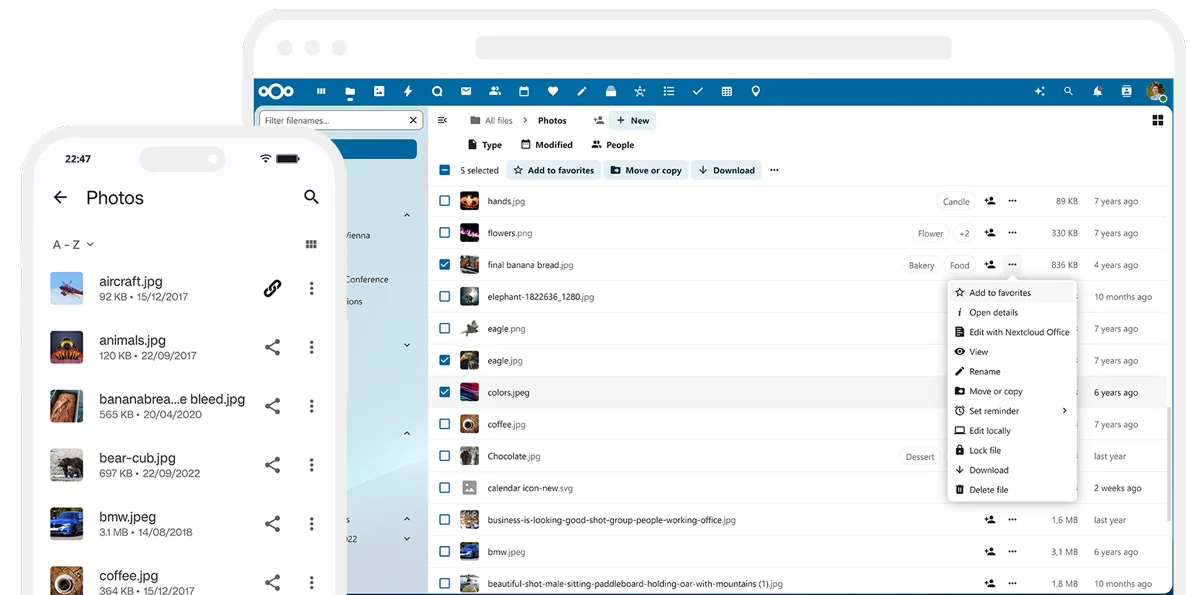
NextCloud is an open-source alternative to services like Dropbox or Google Drive, with the critical difference that you control your data.
Why NextCloud?
- End-to-end encryption for sensitive files
- No data mining of your personal information
- Seamless synchronization across devices
- Good free tier (2GB Always Free)
Installation and Configuration
I use NextCloud's 2Go free tier, which offers plenty of space for my essential documents without any cost:
- Create an account at nextcloud.com and select the 2Go free plan
- Download and install the NextCloud desktop client on your Windows PC
- Configure two-way sync by:
- Opening the NextCloud desktop client
- Clicking "Add Folder" and selecting the directory you want to sync
- Choosing "Two-way sync" in the synchronization type dropdown
Setting Up NextCloud on iPhone
The mobile experience is equally important for secure file access:
- Download the NextCloud app from the App Store
- Log in with your NextCloud account credentials
- Set up app lock with Face ID/Touch ID for an extra layer of security
Password Management with Bitwarden 🔐
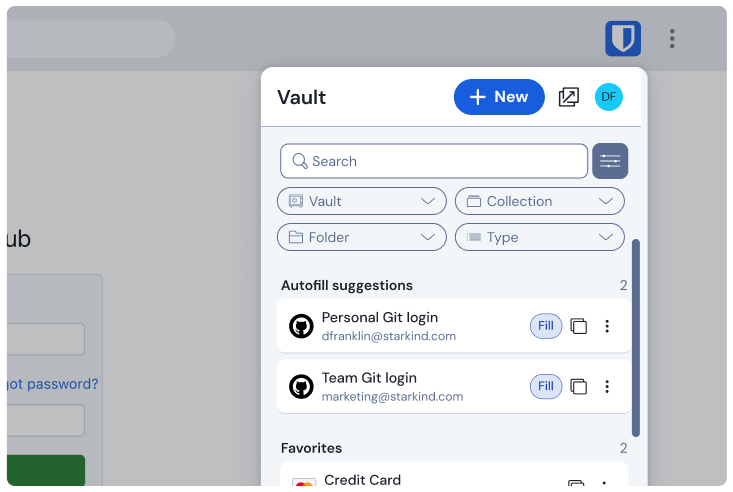
Using unique, strong passwords for every service is impossible without a password manager. Bitwarden stands out for its security, cross-platform support, and open-source approach.
Why Bitwarden?
- Open-source code that security researchers can verify
- End-to-end encryption
- Free tier includes all essential features
- Works seamlessly across all devices
Setting Up Bitwarden
The setup process is straightforward but requires attention to detail:
- Create a Bitwarden account at bitwarden.com
- Create a strong master password
- Make it long (16+ characters) and memorable
- Consider using a passphrase of random words with numbers and symbols
- Example: "correct-horse-battery-staple-42!"
- Install Bitwarden on all devices:
- Windows app from bitwarden.com
- iPhone app from the App Store
- Browser extension for Chrome/Firefox/Edge
Importing Existing Passwords
If you have passwords saved in your browser or another password manager:
- Export your passwords from the existing solution
- In Bitwarden, go to "Tools" → "Import"
- Select your previous password manager and upload the file
- Verify all passwords imported correctly
Setting Up Autofill
The real convenience comes from automatic form filling:
- For browsers: Ensure "Show autofill suggestions on form fields" in "Autofill" settings is enabled (you could also turn off your browser's built-in password manager settings to avoid conflicts)
- For iPhone: Go to Settings → Passwords → AutoFill Passwords → select Bitwarden
Think about how many times you've tried to log in to a website only to realize you can't remember which email/password combination you used. With Bitwarden, those days are officially over.
Unified and Secure Communication with Beeper 💬
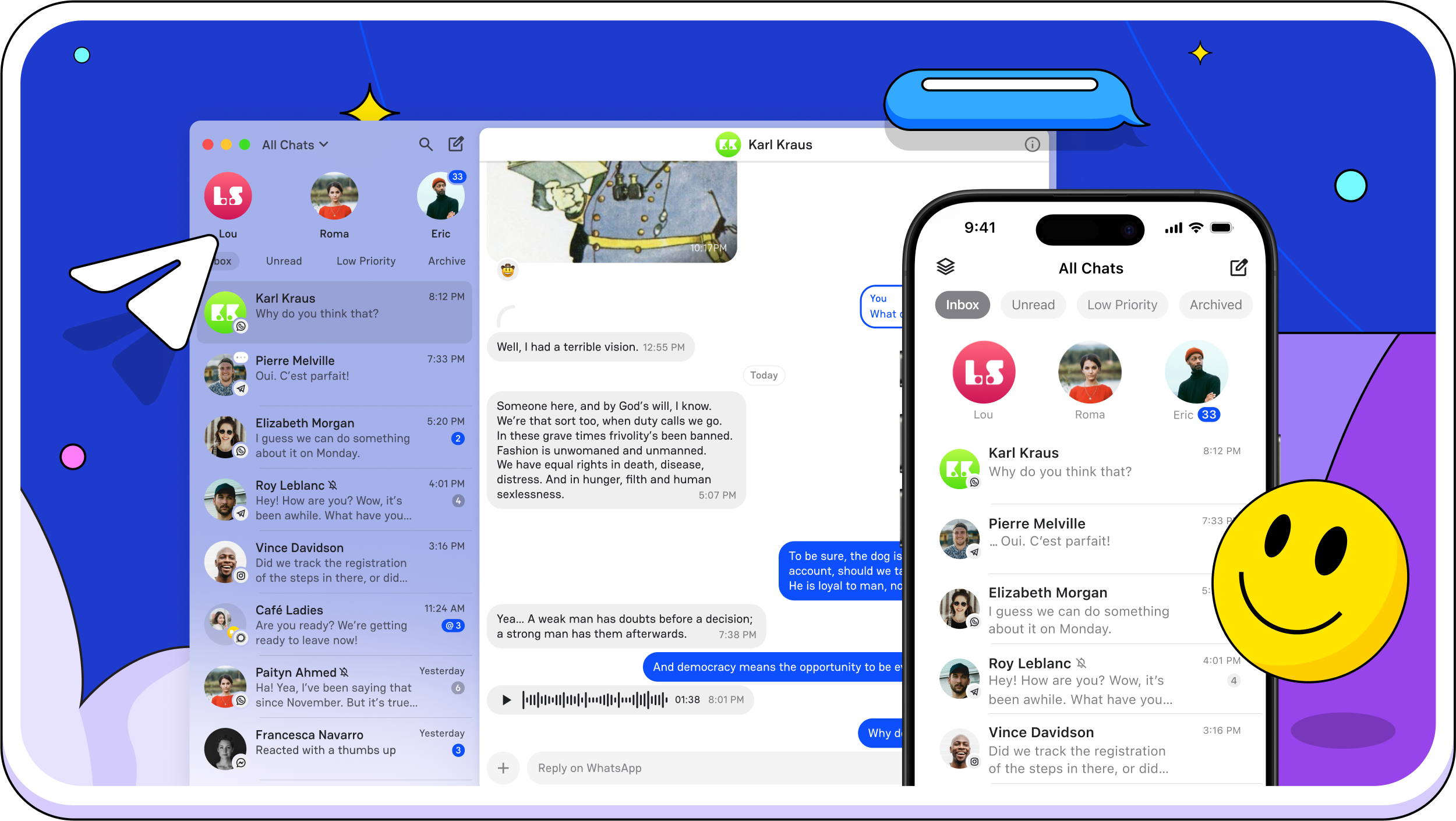 Their new app design is top notch !
Managing conversations across multiple platforms becomes unwieldy. Beeper solves this by bringing all your messages into one secure interface.
Why Beeper?
- Unifies 14+ chat platforms (WhatsApp, Telegram, Signal, Discord, etc.)
- End-to-end encryption maintained
- "Note to Me" feature for quick file transfer between devices
- Cross-platform availability
Setting Up Beeper
The setup process requires authorizing each platform you want to integrate:
- Create a Beeper account at beeper.com
- Download the Beeper app on your devices:
- Windows PC
- iPhone
- Connect your messaging accounts by following the platform-specific instructions:
- For most platforms, you'll scan a QR code
- Some services require an authentication token
The "Note to Me" Hack
One of my favorite Beeper features is using the "Note to Me" conversation as a personal file transfer system:
- In Beeper, open the "Note to Self" conversation
- Drag and drop files you want to access on another device
- Open Beeper on your other device, and the files are instantly available
This creates a seamless way to move items between devices without using email or dedicated file-sharing apps (perfect for replacing AirDrop, sorry Mac users 😜).
Privacy Considerations
While Beeper is convenient, encrypts all chat data and has an option to self-host (as outlined in their FAQ), I take some extra precautions:
- Use native apps for the most security-critical communications
- Regularly review connected services and remove those you no longer use
Conclusion
Securing your digital life doesn't require extreme technical knowledge or expensive solutions. With NextCloud, Bitwarden, and Beeper, you can create a robust security system that:
- Protects your sensitive files
- Manages your passwords securely
- Simplifies your communications
The peace of mind that comes from knowing your digital life is secure is invaluable, and these tools make it achievable for everyone.
